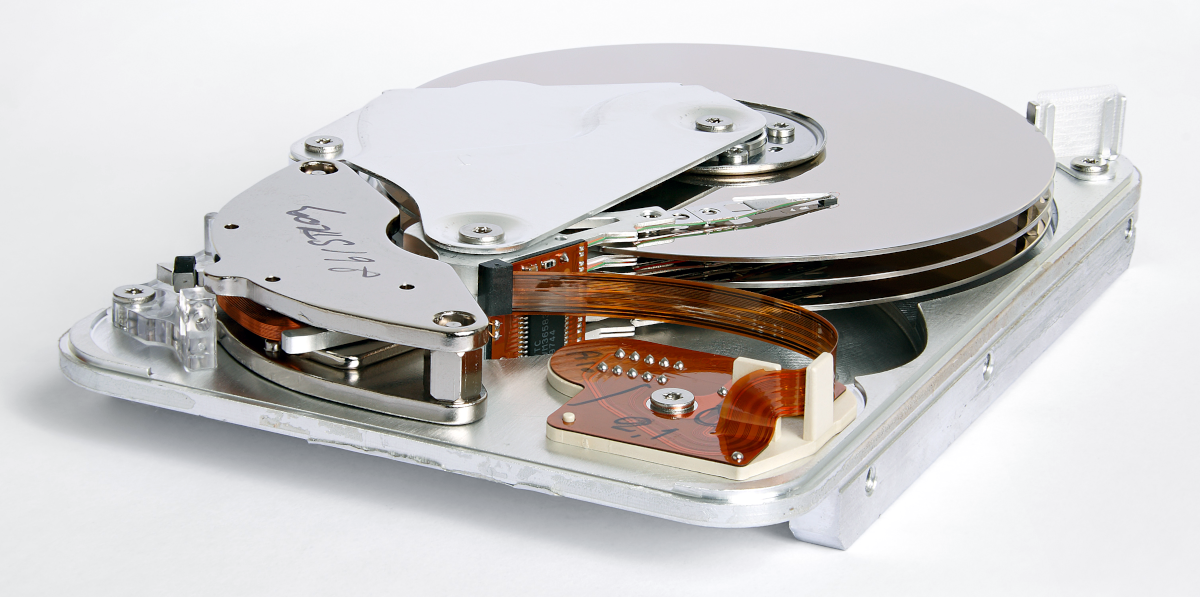
[Photo by Eric Gaba]
Ah, poor old HDDs! They served us, and served us well for decades, but today…


SSDs have been widely available to the public for many years now, and having an SSD within your computer has become a must-have for all but the most extreme data-hoarding budget builders. But when you go online, looking to buy an SSD, you are bombarded with intricate specifications: M.2? DRAM? NAND? What is all of that?
In this article, we are looking to answer those questions, and give some buying advice at the end.
If you are looking to store your digital goodies with the most bang for the buck, then hard disk drives are undoubtedly the way to go. Whether it’s for a NAS, a secondary drive for some less-played games, or any other use where capacity is a priority over speed—there’s no beating the ‘price per gigabyte’ of HDDs. But how do you pick the perfect drive for your use case?
Although almost any modern drive should fit and work fine if there is a free compatible motherboard slot and power connection present (usually SATA, although older systems might have other connectors), there are a few different things to consider when looking to get the perfect drive. In this guide, I will be going over the what and the how of picking out your new drive (or drives!). But first, let’s take a closer look at what HDDs can offer us that an SSD or some other technology can’t, and what drawbacks there might be.


If you’ve ever taken a look at a solid state drive, you’ve probably seen a variety of performance figures. But what’s the meaning behind them? How important are they?
In How to Choose the Right Storage for Your Gaming PC, we covered the most common types of storage: Standard hard disk drives (HDDs) and common types of solid state drives (SSDs), reviewing how they best fit in a gaming PC. Today, we discuss where speed comes in.

M.2 SATA, M.2 NVME, SSD, HDD—if any of those abbreviations make your head spin faster than a hard drive platter, look no further. This article outlines the different storage options on the market today, highlighting the best use-cases for each and recommending the best product in every class.
Upgrading an older storage drive to an SSD is one of the surest (and cheapest) ways to give a boost to an older PC, but where should you begin? There are three main options on the market today: HDDs, SATA SSDs, and M.2 SSDs. Here’s a look at each.


In the big wide world of hard drives, SSDs, RAM, VRAM, fancy CPU tech, and more—we felt it was about time to have a bit of a deep dive into data transfer rates.
That way, even if you’re working from an example PC build in our main build chart, you’ll know exactly what kind of speed and overall bandwidth you’re getting for your money!

For a long time, the only way to store information on your PC in a long term, easily accessible manner, was to use a hard drive disk, which is a technology that dates all the way back to the 1950s. The refrigerator-sized IBM 305 computers shown below held 3.75 megabytes of data each, which is just about the amount of data used to store one photo taken by a modern mobile phone.


